Share Assets via a Branded Microsite
Objective: Quickly create a portal to share your assets with a broader audience
Share your assets with anyone (clients, coworkers, partners, friends) inside or outside of your organization by creating a custom branded microsite using Portfolio NetPublish®. Be empowered to create web pages on the fly without help from anyone. You can watermark assets, expose metadata properties, allow your audience to download originals, comment, and so much more.
Create a NetPublish Site in Under a Minute
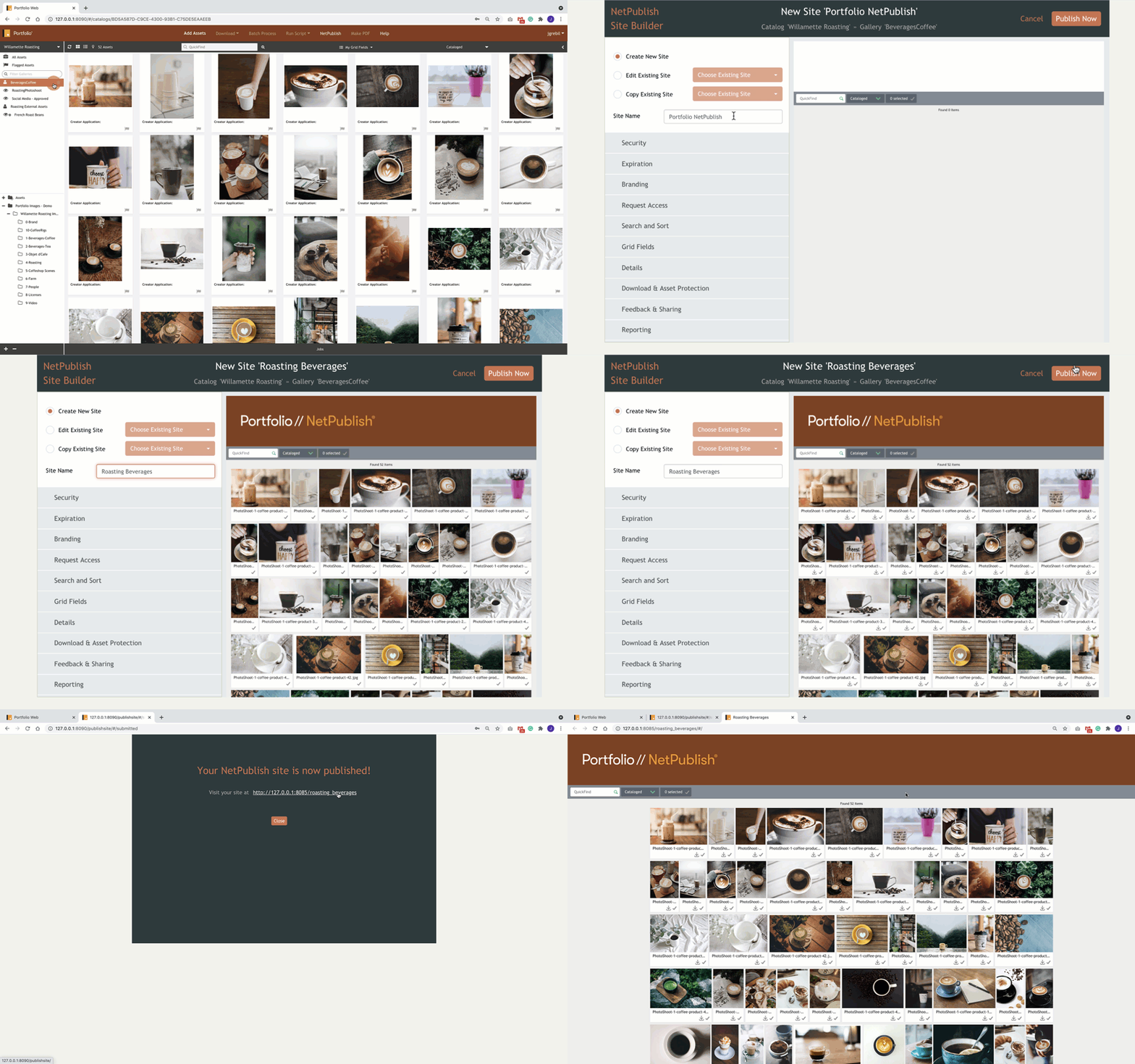
- Select a Gallery in the Organizers Panel.
- Select NetPublish in the Toolbar and choose to Create New Site
- Enter the name of your new site
- Configure and customize the NetPublish site as you see fit. (Optional)
- When you've made the desired settings, select Publish Now.
Note: The Catalog Administrator is the default role able to create NetPublish sites. Your Portfolio Administrator can give other users permission to create NetPublish websites with a simple permission adjustment.
Related Articles
Deleting assets
Options for deleting assets vary depending on the type of catalog you are using (vault or Watch Folder) and what organizer you are viewing (All Assets, a built-in organizer, or a gallery). Deleting from a vault catalog When you delete assets from a ...
Locking assets
If you need to keep an asset in your catalog, but make it unavailable for modification or use, you can lock the asset. This might be necessary if, for example, your license for using an asset has expired but you need to retain the asset for ...
Adding Assets
Portfolio’s reason for being is to keep your assets organized and accessible. In order to do this, you need to add assets to your catalog. You and other users may also benefit by grouping your assets into galleries. There are a number of ways to add ...
Previewing assets
In Grid or List view, you can select one or more assets and view them in Preview mode. To view assets in Preview mode: Double-click an asset; Select several assets and double-click one of them. In Map view, you can click a pin then double-click the ...
Working with Flagged Assets
The Flagged Assets organizer is a special organizer that shows the assets you have flagged during your current session. If you are using the Portfolio Web Client and log out from Portfolio, then log back in without quitting your browser session, any ...