Organization with Smart Galleries

Organization with Smart Galleries

Objective: Use Smart Galleries to enhance organization

Smart Galleries are powered by saving an Advanced Find search query. A Smart Gallery dynamically shows you all the assets that match the underlying search criteria. When an asset is added to the Catalog that meets the requirements, it will automatically be added to the Smart Gallery. Smart Galleries can also be a great way to create a level of automated workflow within Portfolio.
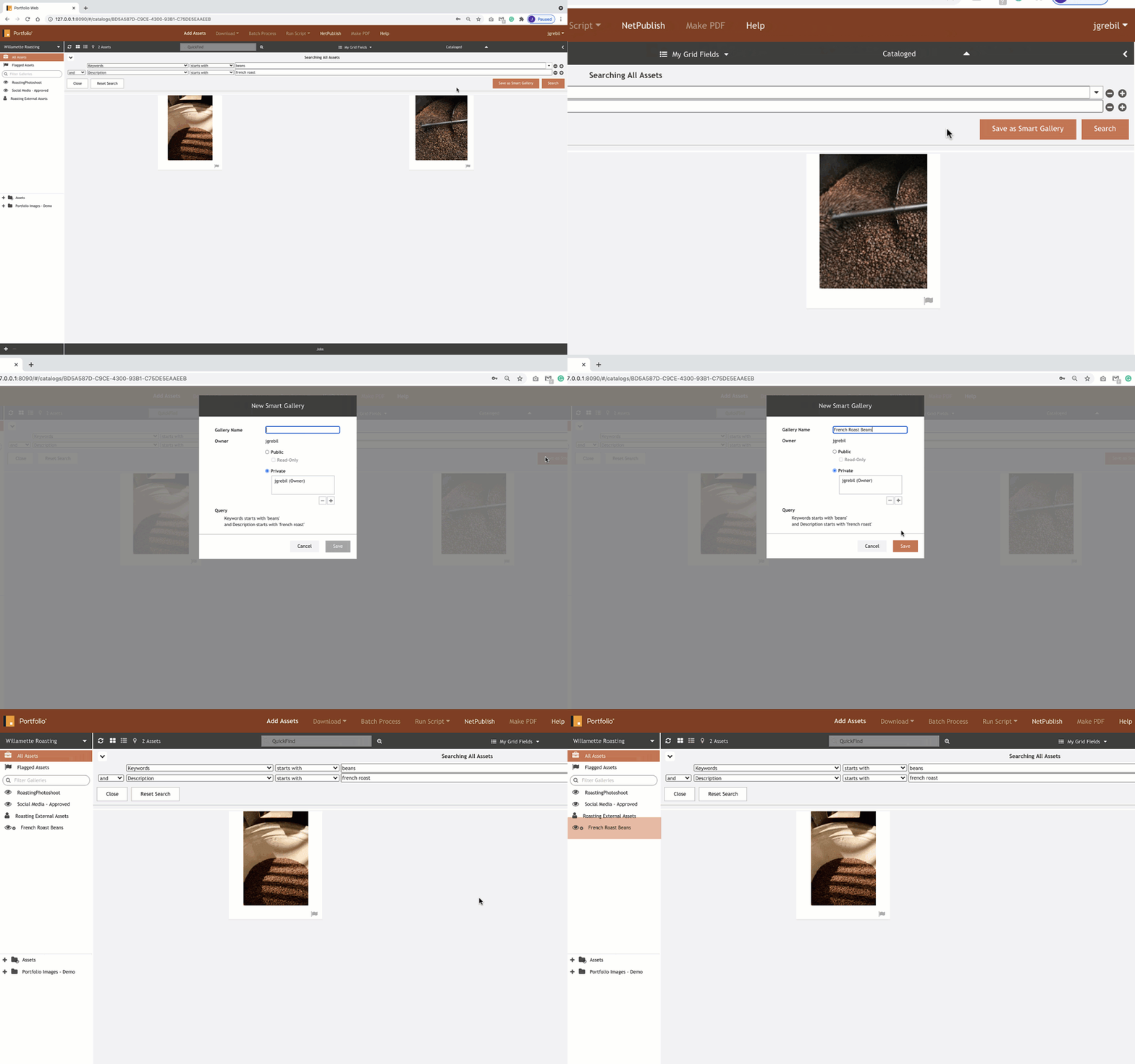
 

MetaDataSmartGallery.gif


    • Related Articles

    • Configure Metadata to Support Your Workflow

      Objective: Let Portfolio support your organization by creating custom metadata fields Portfolio supports hundreds of standard metadata fields, including EXIF, IPTC, Movie, MS Office, Geo, and XMP. You can also create custom metadata fields pertinent ...
    • Galleries

      A gallery can display any subset of the assets in your catalog. A gallery is a good way to organize and view only certain assets in your catalog. For example, a photographer may create a catalog of his entire body of work, but have one gallery that ...
    • Showcase your Metadata

      Objective: Focus your view on the metadata that matters Be in control and expose as much or as little metadata as you like within the main Preview Window or the Fields Panel. Preview Window If you’re a visual person who likes to see your assets and ...
    • Enhance your Assets

      Objective: Make assets easy to find by adding keywords There are multiple ways to add metadata to assets within Portfolio. First, when you add a new asset, Portfolio automatically draws out metadata in the asset such as filename, file size, IPTC and ...
    • Creating a smart gallery

      A smart gallery is a saved set of Advanced Find search criteria. When you open a smart gallery, the search is performed and the results are displayed in the Main window. As new assets are added to the catalog that fit your search parameters, they ...