Get Organized with Watch Folders
Objective: Create a structured environment for your assets using helpful folder names
Let's start with the most popular way of adding assets; by using a Watch Folder. Watch Folders(also known as AutoSync folders) typically live on a network location and are set up by your main Portfolio Administrator. When assets are added and removed from the watched folder, Portfolio checks the folder for updates and will update the Catalog when changes are found. This keeps you in control of your organization's shared assets.
Within Portfolio, you can have multiple watch folders; each mapped to a different file storage location should you choose.
Your main Portfolio Server Administrator has probably already set up the folder location on your network. As the Catalog Administrator, you'll likely be responsible for setting up the Watch Folders for your users within the Portfolio Client.
 Set Up Watch Folders for Portfolio Users
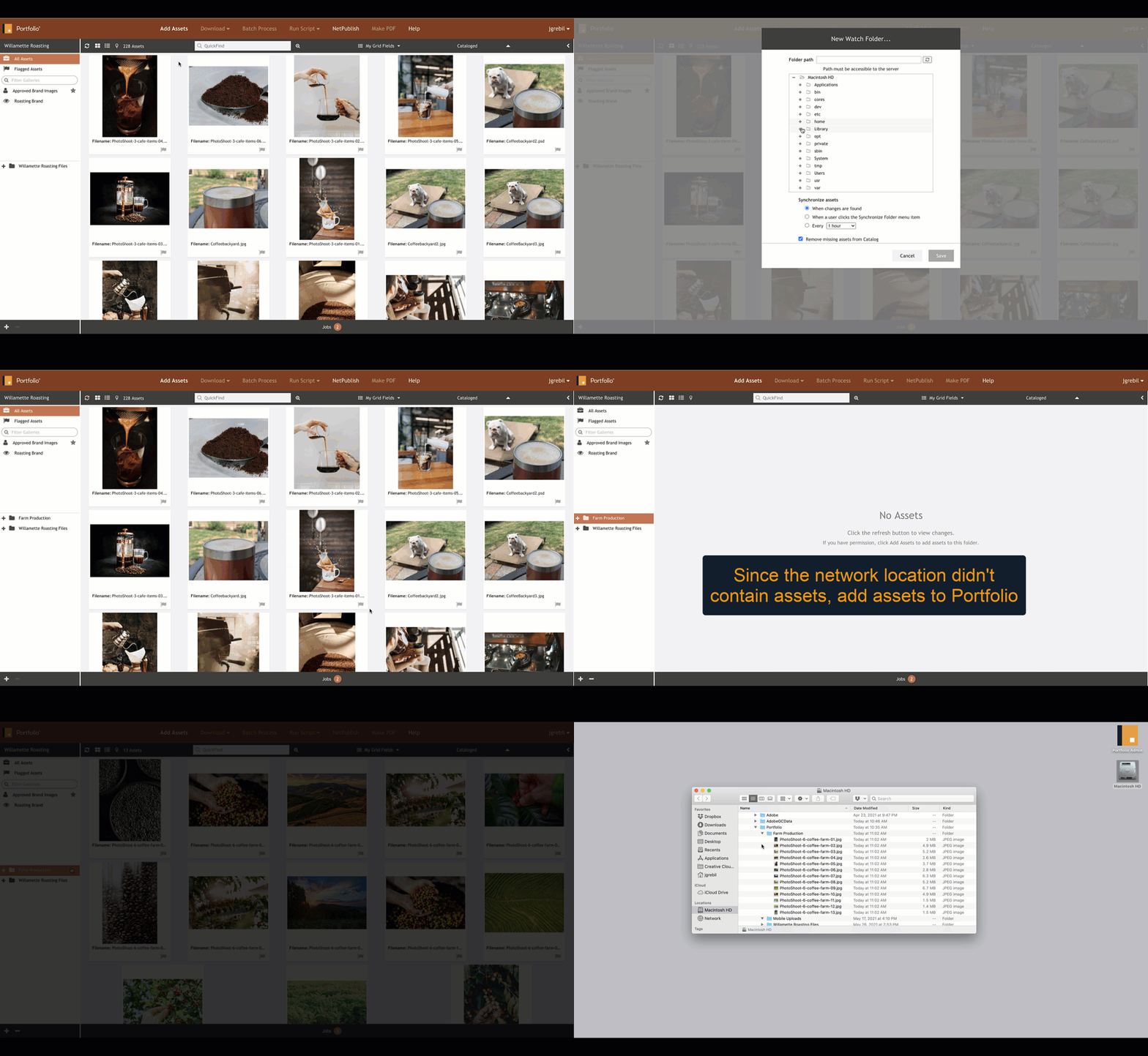
1) Launch the Portfolio Client
2) In the Organizers Panel, click the "+" and select New Watch Folder *
3) Navigate to the folder path on your network that will contain assets
4) Click Save
* Note: For folder names, we recommend organizing your folder names by either Subject, Process, Filename, or Security.
 Create a Subfolder of a WatchFolder Catalog
Subfolders are viewable by everyone on your team and can be organized by department, project, role, or whatever works for your organization.
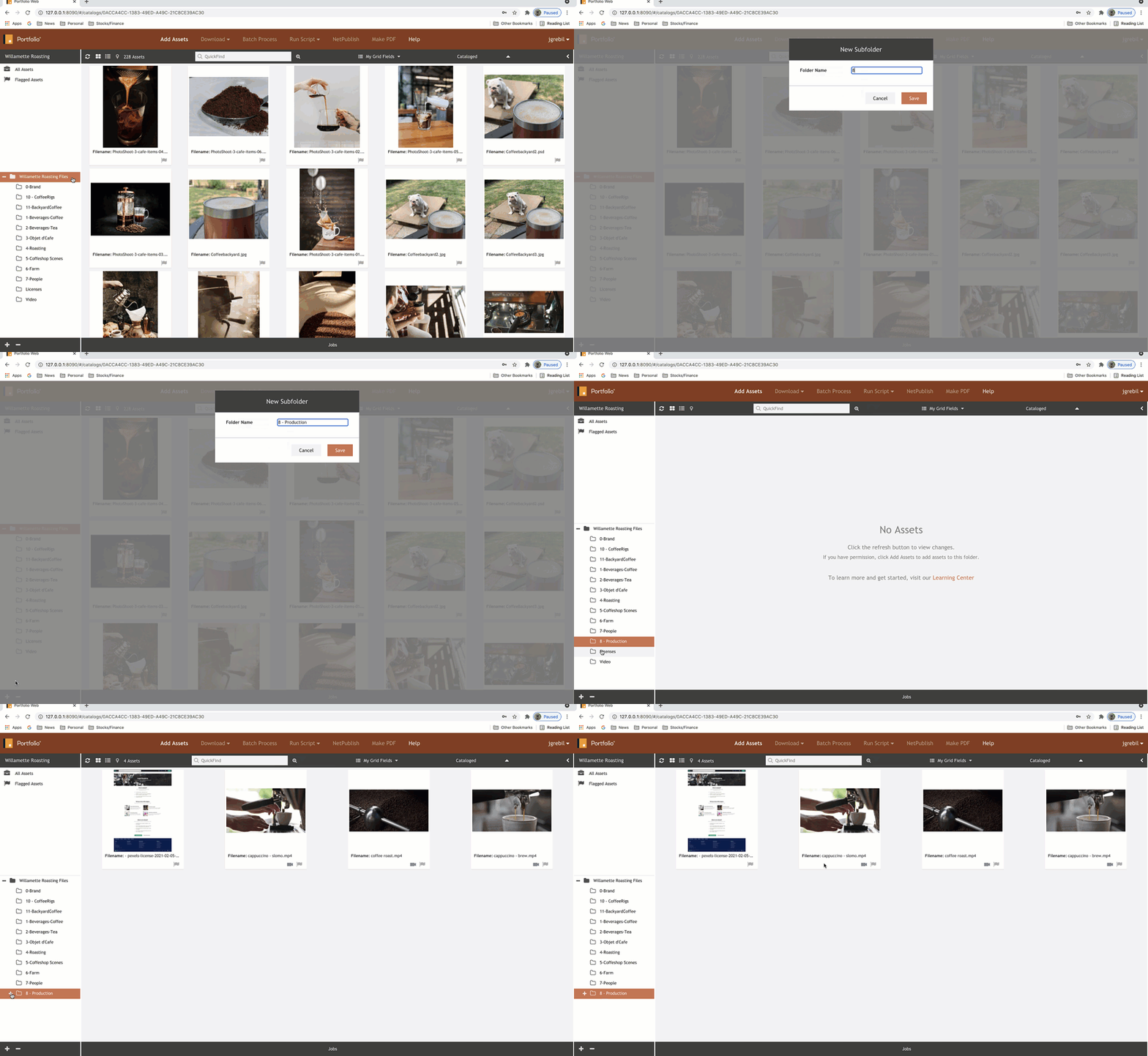
- Select a catalog within the organizer's panel
- Select the watch folder and click the “+” symbol
- Give the folder a name, and Save.
- Optional: You can create nested subfolders to further aid in organization
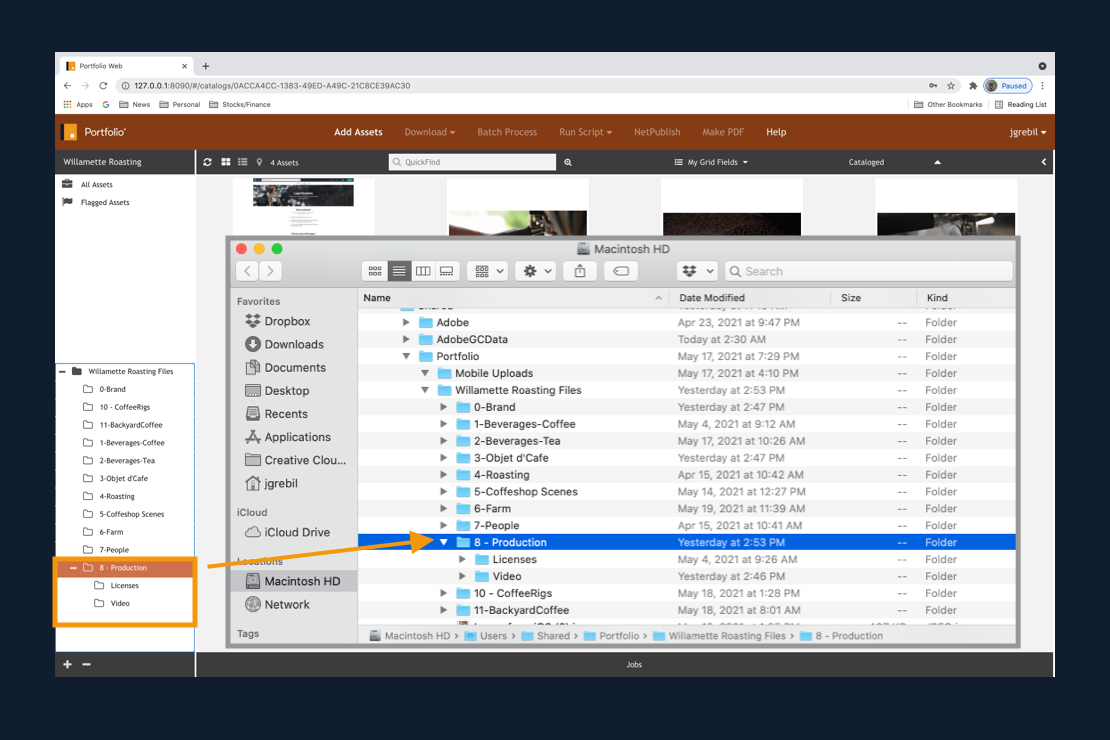
Note: Any changes made to the Portfolio Watch Folder structure will automatically sync to the file server location (see below)