Configure Metadata to Support Your Workflow

Configure Metadata to Support Your Workflow

Objective: Let Portfolio support your organization by creating custom metadata fields

Portfolio supports hundreds of standard metadata fields, including EXIF, IPTC, Movie, MS Office, Geo, and XMP. You can also create custom metadata fields pertinent to your business model, such as unique identifiers, advanced workflows, or to display custom data embedded into your digital assets by other tools. For example, if your organization uses product SKUs, you can add a custom field allowing the SKUs to be viewable and searchable within the Portfolio Client.

 

mceclip0.png  Create a Custom Metadata Field

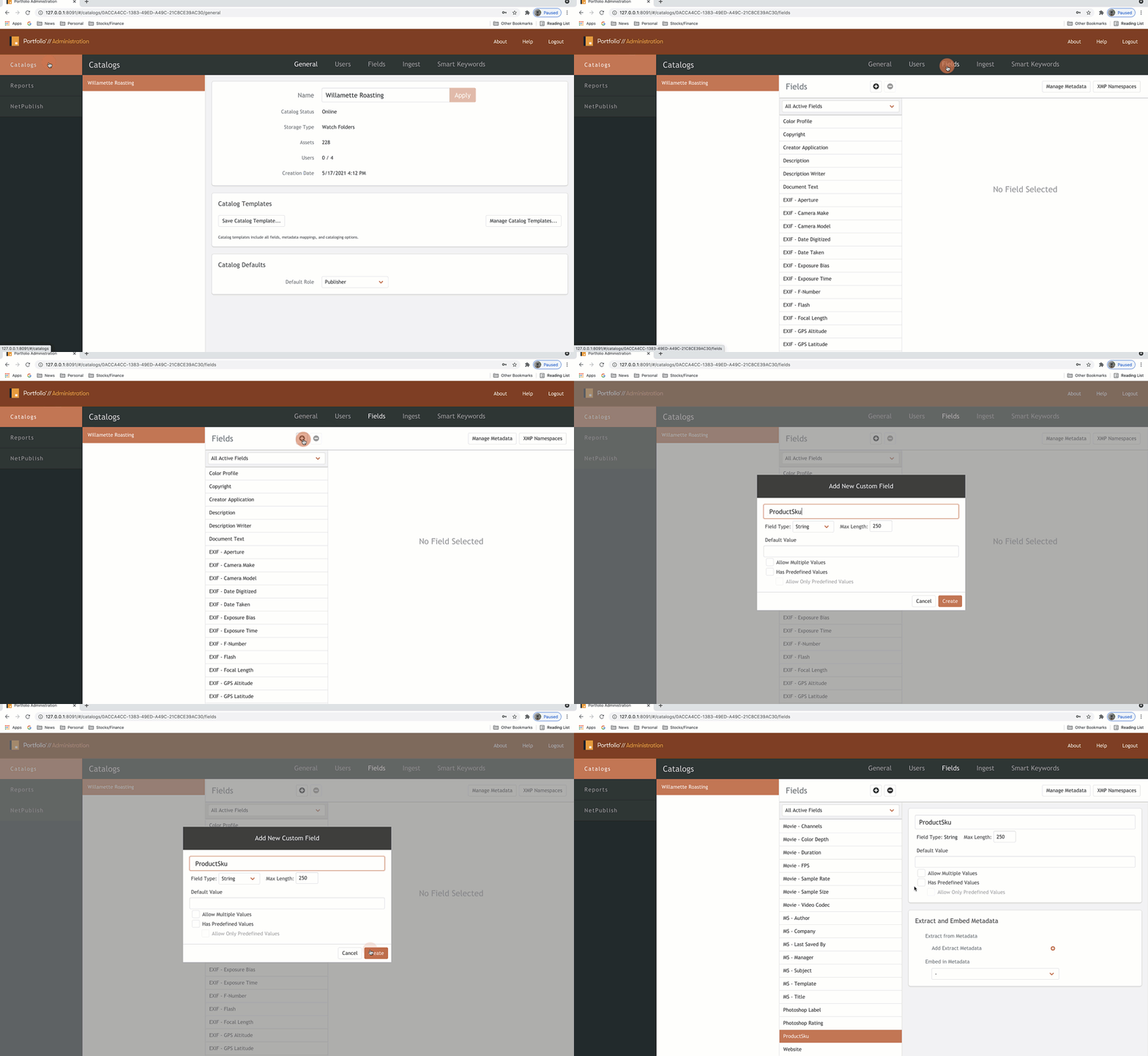
CustomMetadataCatalogAdmin.gif

Create a custom metadata field in the Portfolio Server

  1. Select the Catalogs tab
  2. Select the Fields column
  3. Create a new field by selecting the "+" next to Fields
  4. Name your custom field
  5. Click Create


mceclip1.png See the Custom Field in Action With the Portfolio Client

Now that you've added that new custom field, your Portfolio Client users can see this field as a metadata field option in the Portfolio Client. Let's expose this in the Fields Panel.
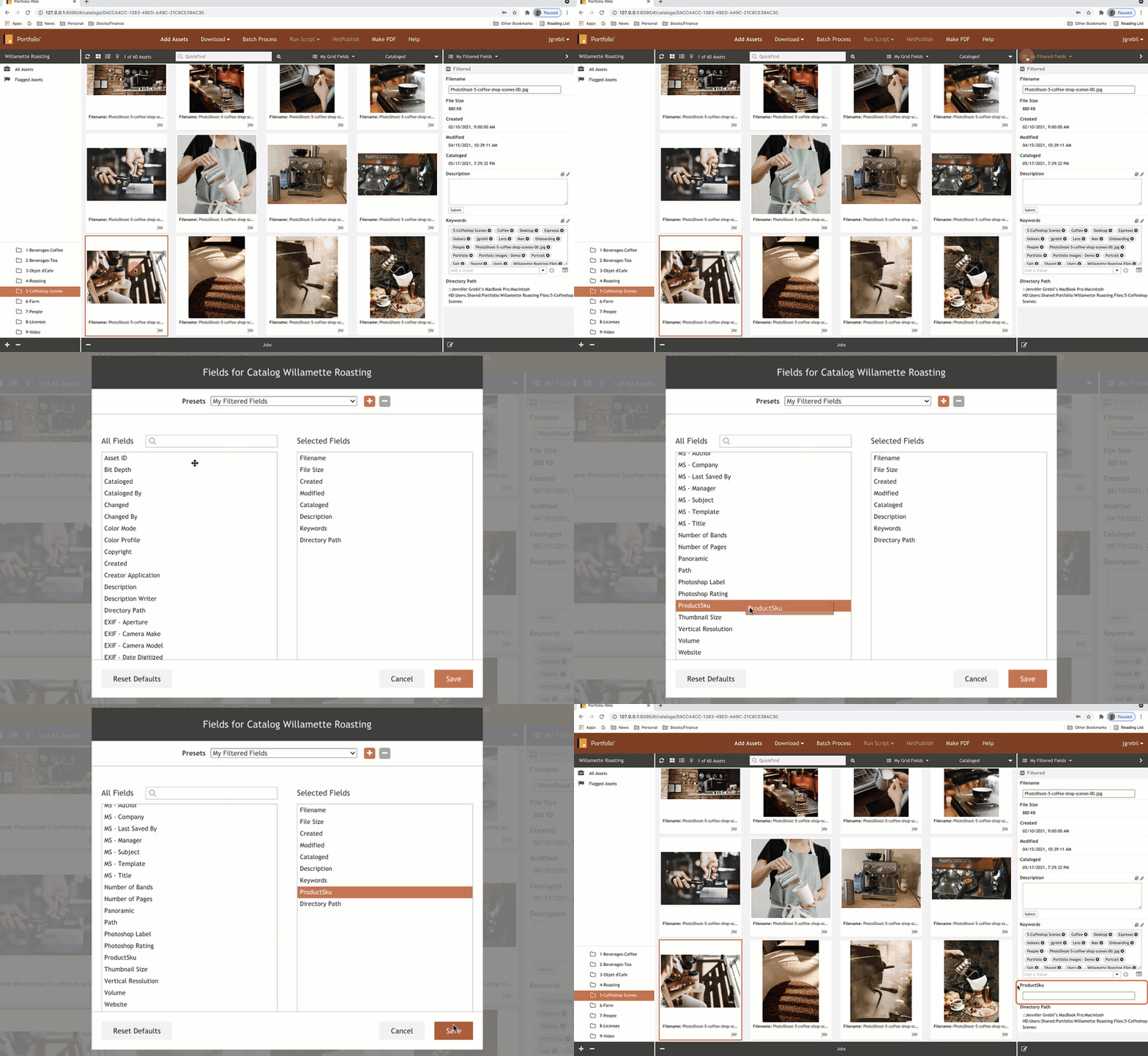
 

CustomMetadataCatalogAdminClient.gif

Display the custom metadata field in the Portfolio Client:

  1. Select the caret to expose the fields menu
  2. Click on My Filtered Fields to display the dropdown menu
  3. Click on Edit Fields
  4. Drag your desired field from the All-Fields column to the Selected Fields column, or remove fields you don’t want and drag up-and-down to rearrange.
    • Related Articles

    • Showcase your Metadata

      Objective: Focus your view on the metadata that matters Be in control and expose as much or as little metadata as you like within the main Preview Window or the Fields Panel. Preview Window If you’re a visual person who likes to see your assets and ...
    • Field Panel Overview

      Objective: Learn the metadata Field Panel You’ll probably be adding keywords and custom metadata to assets. The Portfolio Fields Panel allows you to visualize your metadata and tags. Get familiar with understanding the panel interface and ...
    • Organization with Smart Galleries

      Objective: Use Smart Galleries to enhance organization Smart Galleries are powered by saving an Advanced Find search query. A Smart Gallery dynamically shows you all the assets that match the underlying search criteria. When an asset is added to the ...
    • Field Not Configured to Embed Metadata / Forcing Embedding After Ingestion

      Overview When a metadata field in Portfolio is not configured for embedding, changes to that field are stored in the Portfolio catalog only and are not written into the asset file itself. This article explains how to configure fields for embedding ...
    • Advanced Searching

      Objective: Find that needle in the haystack Now you’ve learned about tagging assets with metadata, take searching and finding your assets to the next level with advanced searching. Advanced Find For power searches, you can string together multiple ...